BF1942 Linux
Dedicated Server
Automated setup for running BF1942 servers on modern 64-bit Linux. Handles dependency resolution, user creation, systemd services, and firewall config in a single interactive script.
- Single-Script Setup
One unified script handles everything — standalone or BFSMD modes.
- Multi-Instance Support
Run unlimited servers on one machine with automatic port allocation.
- Smart Configuration
Interactive IP detection, port conflict prevention, resource validation.
- Secure Runtime
Runs entirely under a dedicated service account (bf1942_user).
- Modern Compatibility
Handles legacy 32-bit dependency resolution across all supported distros.
- Management Tools
Comprehensive CLI for monitoring and managing all instances.
- Performance Optimized
CPU affinity, memory limits, and I/O tuning automatically configured.
- Systemd Integration
Standard systemctl commands with auto-start on boot.
Prerequisite: Commands must be run by a user with sudo privileges.
Download Scripts
# Download main setup script (example: Ubuntu 24.04)
wget https://raw.githubusercontent.com/hootmeow/bf1942-linux/main/installers/ubuntu/ubu_24.0.3_bfsmd_setup.sh

# Download management tool (same file for all distros)
wget https://raw.githubusercontent.com/hootmeow/bf1942-linux/main/bf1942_manager.sh

# Make executable
chmod +x ubu_24.0.3_bfsmd_setup.sh bf1942_manager.sh
Replace the script name with your distro's version from the Supported Distributions table below. bf1942_manager.sh is shared across all distros.
Run the Installer
BFSMD Recommendedsudo ./ubu_24.0.3_bfsmd_setup.shInteractive Prompts
- Installation mode — Standalone (no remote management) or BFSMD (full GUI via BFRM)
- Instance name — (BFSMD only) — unique name like server1, conquest, tdm
- IP address — Auto-detected; choose local, public, or enter custom
- BFSMD version — (BFSMD only) — v2.0 recommended, or v2.01 for admin/PunkBuster fixes
- Firewall rules — Optional, interactive security level selection
Add More Instances
OptionalPass an instance name as an argument. Each instance automatically gets unique ports, its own systemd service, and dedicated CPU cores when available.
sudo ./ubu_24.0.3_bfsmd_setup.sh server2
sudo ./ubu_24.0.3_bfsmd_setup.sh conquest
sudo ./ubu_24.0.3_bfsmd_setup.sh tdmHow Port Assignment Works
When you run the installer with an instance name (e.g. server1), the script calculates a deterministic offset from that name using a CRC-32 checksum, then adds it to three base ports. The same name always produces the same ports — on any machine.
# The script computes this internally:
offset = cksum("server1") % 100      # → a value 0–99

game_port = 14567 + offset            # UDP  — players connect here
query_port = 23000 + offset           # UDP  — server browser / ping
mgmt_port  = 14667 + offset           # TCP  — BFRM management
Game Port
14567–14666
UDP · offset 0–99
Query Port
23000–23099
UDP · offset 0–99
Mgmt Port
14667–14766
TCP · offset 0–99
Conflict detection: If two instance names hash to the same offset, the installer detects the port collision and tells you to pick a different name. Up to 100 unique port sets are possible from the base configuration.
Example Assignments
| Instance Name | Game (UDP) | Mgmt (TCP) |
|---|---|---|
| server1 | 14600 | 14700 |
| server2 | 14605 | 14705 |
| conquest | 14620 | 14720 |
| tdm | 14589 | 14689 |
$ ./bf1942_manager.sh ports — show actual assigned ports for all instances
bf1942_manager.sh lives at the repo root and manages all instances regardless of which distro installed them.
./bf1942_manager.sh list                  # All instances and their status
./bf1942_manager.sh ports                 # Port assignments for all instances
./bf1942_manager.sh status server1        # Detailed status of one instance
./bf1942_manager.sh config server1        # Show config file paths
./bf1942_manager.sh health                # Health check all instances
./bf1942_manager.sh security              # Security audit (passwords, ownership, firewall)
./bf1942_manager.sh logs server1          # Live log tail (Ctrl+C to exit)

sudo ./bf1942_manager.sh start server1
sudo ./bf1942_manager.sh stop server1
sudo ./bf1942_manager.sh restart server1
sudo ./bf1942_manager.sh start-all
sudo ./bf1942_manager.sh stop-all
sudo ./bf1942_manager.sh remove server2 # Removes instance (asks for confirmation)# BFSMD instance
sudo systemctl status bfsmd-server1.service
sudo systemctl restart bfsmd-server1.service
journalctl -u bfsmd-server1.service -f
# Standalone server
sudo systemctl status bf1942.serviceDefault Credentials
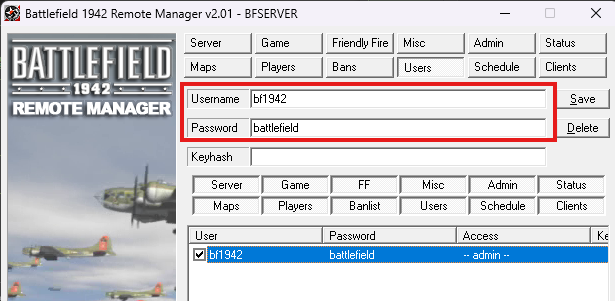
Change ImmediatelyUsername
bf1942Password
battlefieldChange the default password immediately via the Admin tab in BFRM after first login.
Connection Steps
- 1Open BFRM client on your Windows machine
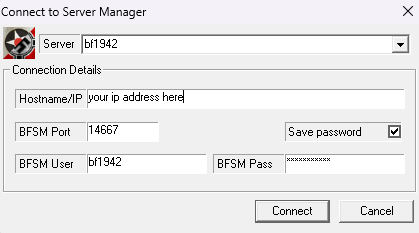
- 2Connect to your-server-ip:management-port
- 3Login with default credentials above
- 4Change password immediately Admin tab → Change Password
01 · Login
Connect with default credentials, then change them immediately.
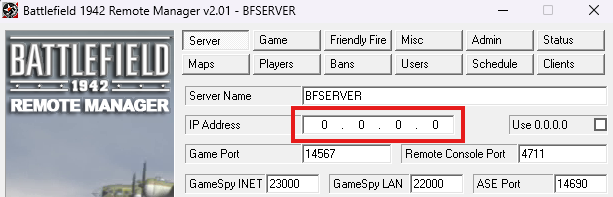
02 · Set Server IP
Navigate to IP settings and set your server's IP address explicitly.
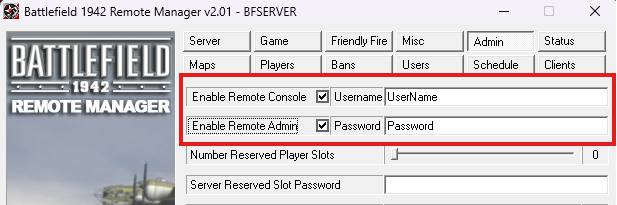
03 · Secure Remote Console
Change default remote console password and create secure admin accounts.
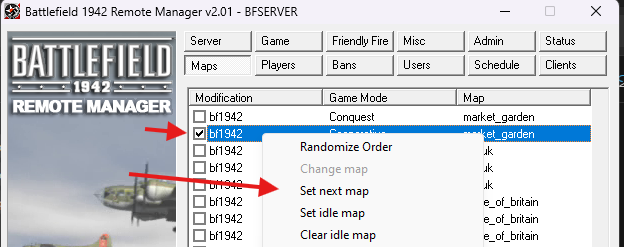
04 · Set Default Map
Add at least one map to the rotation before starting the server.
05 · Update Admin Passwords
Create secure admin accounts and disable the default bf1942 account.
Firewall rules are configured during installation — UFW on Debian/Ubuntu, firewalld on Fedora/RHEL/CentOS. For the management port, choose a security posture:
Open to All
LOW- Anyone can attempt connection
- Still requires password
- Good for testing or behind another firewall
Restrict to IP
RECOMMENDED- Only your specified IP can connect
- Firewall + password protection
- Best for static admin IP
SSH Tunnel
MAX SECURITY- No direct internet exposure
- All traffic encrypted via SSH
- Port not opened in firewall at all
# On your local machine:
ssh -L 14700:localhost:14700 user@your-server-ip

# Then point BFRM at localhost:14700Home Server (Behind Router)
- During Install:Choose Local IP (192.168.x.x)
- Router Config:Forward Game + Query ports (UDP)
- Players Connect To:Your public IP
Cloud / VPS (AWS, DigitalOcean…)
- During Install:Choose Local IP (10.x.x.x or private IP)
- Cloud Firewall:Allow Game + Query ports from 0.0.0.0/0
- Players Connect To:Instance's public IP
"Internal error!" in Logs
This is normal. BFSMD v2.0/v2.01 produces these continuously on modern kernels when reading /proc. The server functions perfectly regardless.
journalctl -u bfsmd-server1.service -f | grep -v "Internal error"Can't Connect to Server
# 1. Check service is running
systemctl is-active bfsmd-server1.service

# 2. Check firewall (Debian/Ubuntu)
sudo ufw status
# Check firewall (Fedora/RHEL/CentOS)
sudo firewall-cmd --list-ports

# 3. Verify ports are listening
sudo ss -tulnp | grep 14567

# 4. View live logs
./bf1942_manager.sh logs server1
Port Conflict During Installation
Try a different instance name — ports are derived from the name hash, so a new name generates a different port set. Check existing assignments with ./bf1942_manager.sh ports.
Can't Login to BFRM
- 01Confirm credentials:
bf1942/battlefield - 02Confirm management port:
./bf1942_manager.sh ports - 03Confirm firewall allows the connection from your IP
- 04Confirm service is running:
./bf1942_manager.sh status server1
Standalone Server
/home/bf1942_user/bf1942/mods/bf1942/settings/
├── ServerSettings.con  # Game settings
└── MapList.con         # Map rotation
BFSMD Instance
/home/bf1942_user/instances/<name>/mods/bf1942/settings/
├── servermanager.con   # BFSMD settings
├── useraccess.con      # Admin accounts
├── ServerSettings.con  # Game settings
└── MapList.con # Map rotationInstance Limits · Recommended Ceiling
The script warns if exceeded but won't block you.
| CPU Cores | Recommended Max Instances |
|---|---|
| 2 | 4 |
| 4 | 8 |
| 8 | 16 |
Backup & Restore
# Backup settings
sudo tar -czf server1-backup-$(date +%F).tar.gz \
  /home/bf1942_user/instances/server1/mods/bf1942/settings/

# Restore
sudo tar -xzf server1-backup-*.tar.gz -C /
sudo systemctl restart bfsmd-server1.service
Clone Instance
sudo cp -r \
  /home/bf1942_user/instances/server1/mods/bf1942/settings/* \
  /home/bf1942_user/instances/server2/mods/bf1942/settings/

# Update port in ServerSettings.con, then:
sudo systemctl restart bfsmd-server2.serviceAll distros fully tested and supported
6 / 6 Active| Distribution | Script |
|---|---|
| Ubuntu 24.04 LTS | installers/ubuntu/ubu_24.0.3_bfsmd_setup.sh |
| Ubuntu 22.04 LTS | installers/ubuntu/ubu_22.04_bfsmd_setup.sh |
| Debian 12 (Bookworm) / 13 (Trixie) | installers/debian/deb_12_bfsmd_setup.sh |
| Fedora 40 / 41 | installers/fedora/fed_40_bfsmd_setup.sh |
| RHEL 9 | installers/rhel/rhel_9_bfsmd_setup.sh |
| CentOS Stream 9 | installers/centos/centos_stream9_bfsmd_setup.sh |
See the GitHub repo for the latest scripts and update history.
Applying Patches
The patches folder contains Python scripts to fix known server bugs. See each patch file for details and instructions.
License
Scripts released under the MIT License. All Battlefield 1942 game assets remain © Electronic Arts Inc.